Command Palette
The Command Palette gives you keyboard-first access to everything in AiderDesk: files, actions, tasks, and projects — searchable with fuzzy matching.
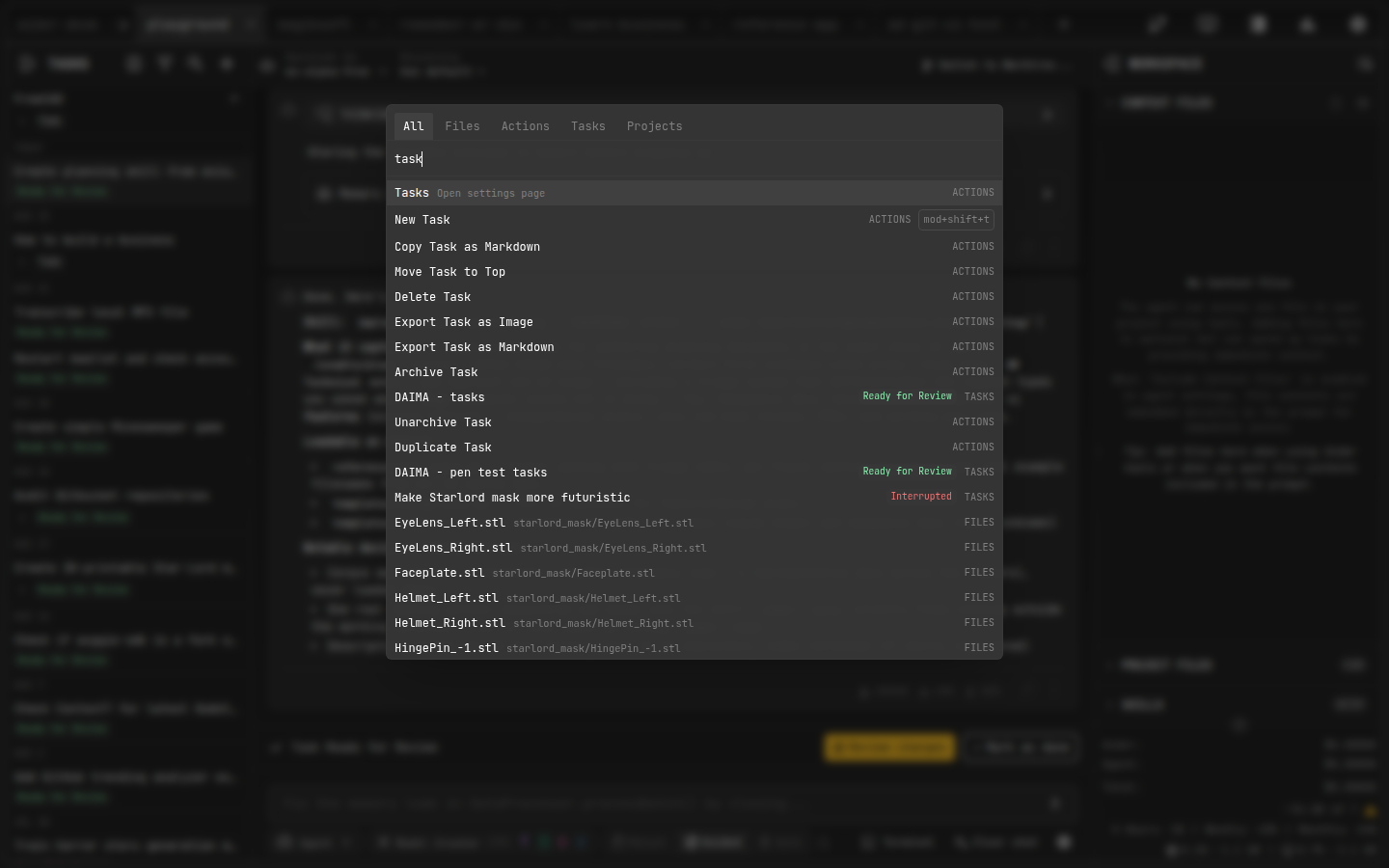
Opening the Palette
Use the Command Palette hotkey — Ctrl+Shift+P (macOS: Cmd+Shift+P) by default. You can rebind it under Settings > Hotkeys.
What You Can Find
| Tab | Contents |
|---|---|
| All | Everything below, ranked by relevance and recent usage |
| Files | Any file in any open project — jump straight to it |
| Actions | App commands like opening the editor, Model Library, Usage Dashboard, or any settings page |
| Tasks | Switch between tasks of the active project (archived tasks hidden by default) |
| Projects | Jump to another open project |
Tips
- Results are fuzzy-matched — type a few distinctive characters instead of full names
- Recently used items float to the top of the list
- Navigate with
↑/↓, confirm withEnter, dismiss withEscape