Commands
AiderDesk supports two kinds of prompt-field commands: built-in commands that ship with the app, and custom commands you define as Markdown files. Both are triggered by typing / followed by the command name, with autocompletion as you type.
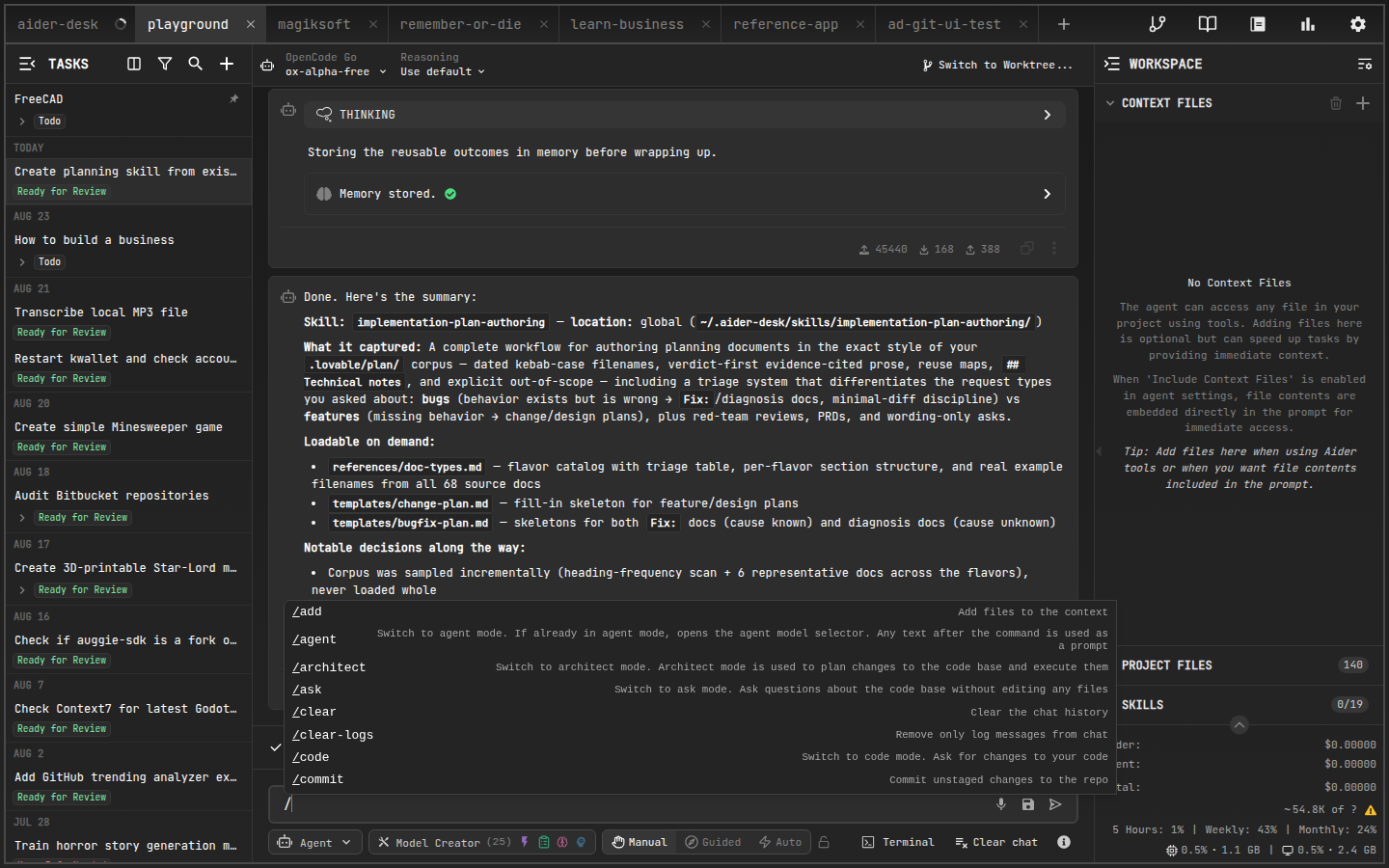
Built-in Commands
Core
/add— adds one or more files to the chat context. Example:/add src/main.js src/utils.js/drop— removes files from the chat context. Example:/drop src/main.js/read-only— adds files as read-only reference material. Example:/read-only docs/api.md/run— executes a shell command and optionally adds the output to the chat. Example:/run ls -l/test— runs the predefined test command for your project.
Chat & Context Management
/clear— clears chat history and drops all files from context/clear-logs— removes only log messages, keeping the conversation intact/reset— full session reset: drops all files from context and clears the conversation history, keeping the task itself/compact— summarizes the conversation to reduce token usage (learn more)/smart-compact— applies smart compaction (deterministic trimming of older tool output and reads) without LLM summarization (learn more)/copy-context— copies the current context as Markdown for pasting into web UIs/tokens— reports current token usage broken down by files, messages, and repo map
Mode Switching
/agent— switches to Agent Mode for autonomous task execution (default)/code— switches to Code Mode for direct coding requests/ask— switches to Ask Mode for questions without changes/architect— switches to Architect Mode for planning large-scale changes/context— switches to Context Mode for automatic relevant-file selection
Model & Aider Control
/model— opens the model selector. Example:/model openai/gpt-4.1/reasoning-effort— sets reasoning effort (low,medium,high)/think-tokens— sets the thinking token budget. Example:/think-tokens 8k/undo— undoes the last Aider-made git commit/redo— re-runs the last user prompt/edit-last— edit and re-submit your last message
Utilities
/web— scrapes a URL and adds its content to the chat. Example:/web https://aider.chat/docs//map— prints the current repository map/map-refresh— forces a repo map refresh/commit— commits unstaged changes/resolve-conflicts— resolves merge conflicts using AI (worktree or main repo)/init— initializes anAGENTS.mdrule file for your project/task-info— toggles the Task Info panel for the current task/handoff— extracts relevant context into a new focused task (learn more)
Subtasks & Subagents
/subtask— creates a subtask of the current task. Example:/subtask Write unit tests for the parser module/subagent— sends your prompt directly to one of your enabled subagent profiles. Example:/subagent code-reviewer Review the latest changes
Custom Commands
Custom commands let you automate repetitive workflows. Each command is a Markdown file with YAML front matter; its body becomes the prompt sent to the AI.
Where to Create Them
- Global —
~/.aider-desk/commands/— available in all projects - Project-specific —
.aider-desk/commands/— only for that project; overrides global commands with the same name
Both directories are created automatically if missing and watched for changes.
File Format
---
description: A brief description shown in autocompletion.
arguments:
  - description: Description for the first argument.
    required: true # optional, defaults to true
includeContext: true # include current chat history & context files
skills: writing-tests # optional, comma-separated skills to activate
autoApprove: false # let the agent execute tools without approval
---
Template sent to the agent. Use {{1}}, {{2}} for arguments,
{{ARGUMENTS}} for all arguments joined by spaces.
Any line starting with ! is executed as a shell command first;
its stdout replaces that line in the assembled prompt.
Usage
Type /mycommand arg1 "argument with spaces" in the prompt field. Arguments are substituted into the template, embedded shell commands run first, then the final prompt is dispatched according to the active mode.
Examples
Conventional commit message (.aider-desk/commands/commit-message.md):
---
description: Generate a conventional commit message based on git diff.
includeContext: false
---
Please generate a conventional commit message based on result of git diff.
Follow the Conventional Commits specification: `<type>: <description>`

!git diff HEAD

Only answer with the commit message, nothing else.
Squash unpushed commits (.aider-desk/commands/squash.md) — uses includeContext: false so history doesn't pollute the prompt, and autoApprove: true so git commands run without confirmation. See more community examples in the Extensions Gallery.
Subfolders organize related commands: .aider-desk/commands/review/uncommitted.md becomes /review/uncommitted.