Context Files
Context files tell the AI exactly which parts of your codebase to focus on. They are shown in the Context section of the left sidebar for each task.
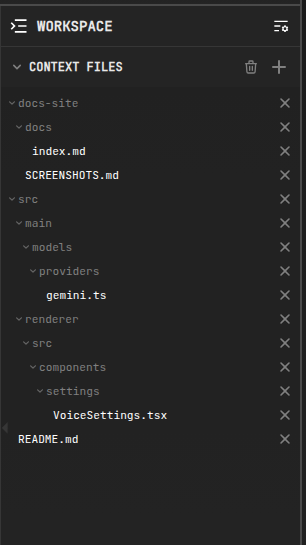
Adding Files
- Drag & drop files into the chat area
/addcommand:/add src/main.js src/utils.js- File browser in the sidebar — hover a file and click the
+button to add it; files already in context show a✕to remove them - Add-file dialog — click
+in the Context section header to search and pick files (with an optional Read-only flag) - IDE connectors can sync your active editor files automatically — see IDE Integration
Read-Only Files
Reference files that the AI should read but never modify can be pinned as read-only:
- Check the Read-only option in the add-file dialog
- Or use the command:
/read-only docs/api.md
Read-only files are included in prompts as reference material — the agent is instructed not to edit them, giving you a safe way to provide specs, docs, or examples. Files pinned this way are marked with an indicator in the context panel.

Removing Files
- Click the ✕ next to the file in the context panel (or next to it in the project tree)
- Use the trash icon in the Context section header to drop all files at once
- Or use
/drop src/main.js
Tips
- Use
/tokensto see how much context the current selection consumes - Set a default context file limit and auto-exclude patterns (e.g.
node_modules/) in Settings - Aider's repo map lets the model discover related files even when they are not explicitly added