Updated Files
When the AI modifies files in your project, AiderDesk tracks these changes in the Updated Files section. This feature provides a centralized view of all files that have been changed during the current task, making it easy to review, navigate, and refine the AI's work.
What Are Updated Files?
Updated Files are files that have been modified by Aider during the current task. They appear in a dedicated section in the left sidebar, separate from your context files and project files.
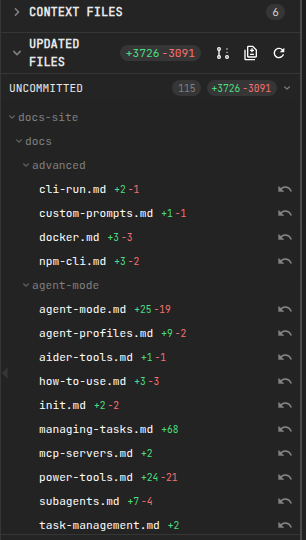
Each updated file shows:
- File path - The relative path to the modified file
- Line statistics - Number of lines added (green) and removed (red)
Untracked Files
Files that were newly created but are not yet tracked by Git also appear in the Updated Files section, marked as untracked. For these files, an Add to Git action is available directly on the file entry, so you can start tracking them without leaving the view. Once a file is tracked by Git, it participates in the normal diff and revert workflow like any other updated file.
Accessing the Diff View
Clicking on any file in the Updated Files section opens a Diff View Modal that shows:
- Full diff visualization - See exactly what changed with color-coded additions and deletions
- Navigation controls - Use arrow buttons to move between multiple updated files
- File information - Current file name and position in the list (e.g., "2 of 5")
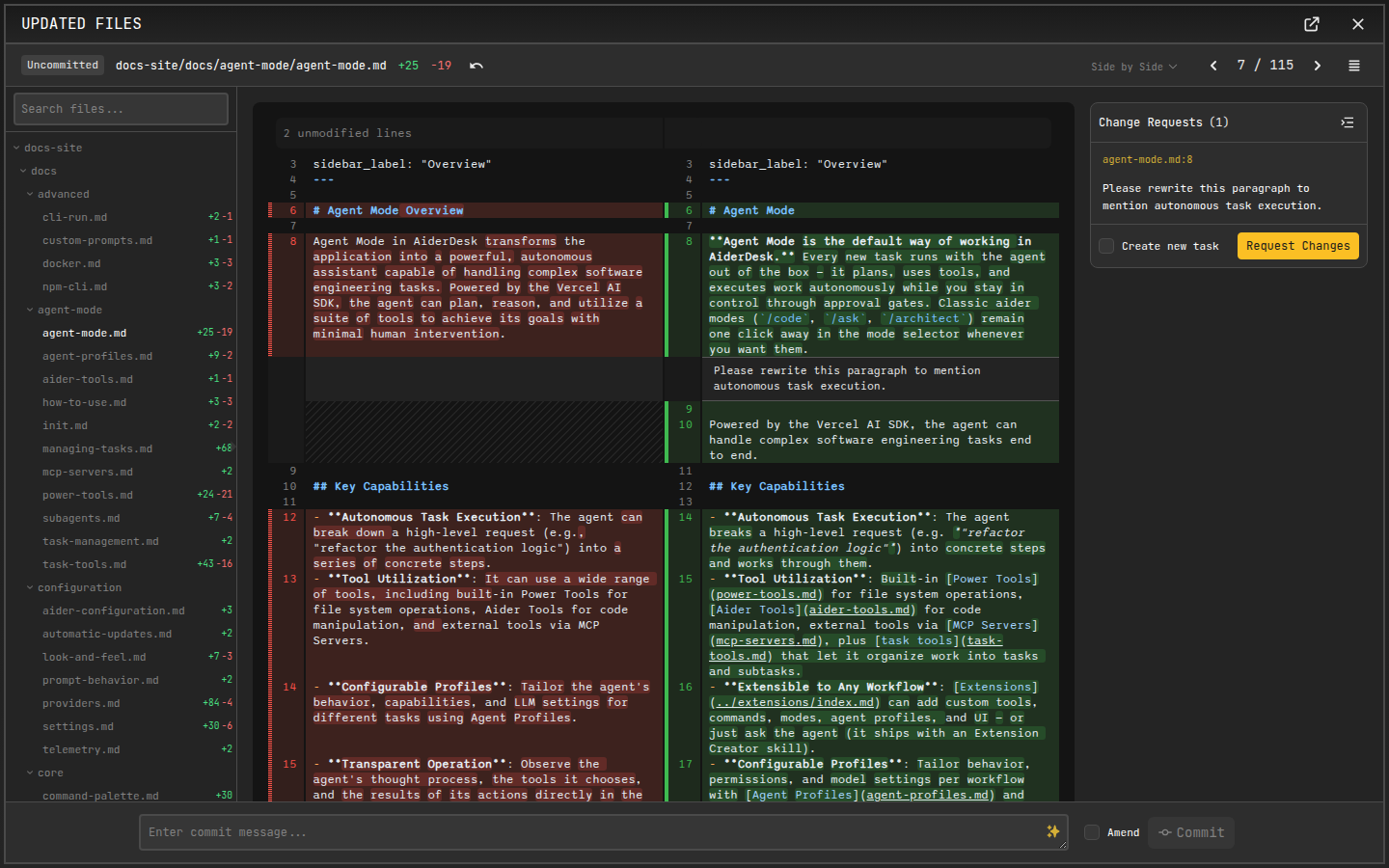
The diff view supports the same visualization modes as inline code diffs:
- Side-by-Side - Original code on the left, modified code on the right
- Unified - Changes shown inline in a single column
- Compact - Space-saving mode with character-level highlighting
Making Inline Requests
The most powerful feature of the Updated Files diff view is the ability to make inline code requests. This allows you to request specific changes directly on any line of code.
How to Make an Inline Request
- Open the diff view by clicking on a file in the Updated Files section
- Click on any line in the modified code where you want to request a change
- Enter your feedback in the comment dialog that appears
- Submit the request - AiderDesk creates a focused task to implement your change
What Happens Next
When you submit an inline request:
- A new task is created with context about the specific file and line
- The AI receives your comment along with surrounding code context
- The change is implemented while maintaining code coherence with the rest of the file
Example Use Cases
- "Add error handling here" - Click on a function call and request try-catch blocks
- "This variable name is unclear, rename to userCount" - Request naming improvements
- "Add JSDoc documentation for this function" - Request inline documentation
- "Optimize this loop for performance" - Request specific optimizations
- "Add null check before accessing this property" - Request defensive coding
Best Practices
DO:
- Be specific about what you want changed on the line
- Provide context about why the change is needed
- Focus on one issue per inline request
- Use inline requests for targeted refinements after reviewing the AI's work
DON'T:
- Request multiple unrelated changes in one comment
- Use vague feedback like "fix this" without explanation
- Request changes that span multiple files (use a regular prompt instead)
- Request large refactors through inline comments
Refreshing Updated Files
The Updated Files list automatically updates as the AI makes changes. You can also manually refresh the list using the refresh button in the section header if needed.
Related Features
- Diff Viewer - Learn about diff visualization modes and reverting changes
- Custom Prompts - Customize the inline request prompt template