Managing Projects
AiderDesk is designed to handle multiple projects simultaneously, letting you switch between codebases without losing context.
Opening a Project
- If no projects are open, click the Open Project button in the center of the screen
- If you already have projects open, click the
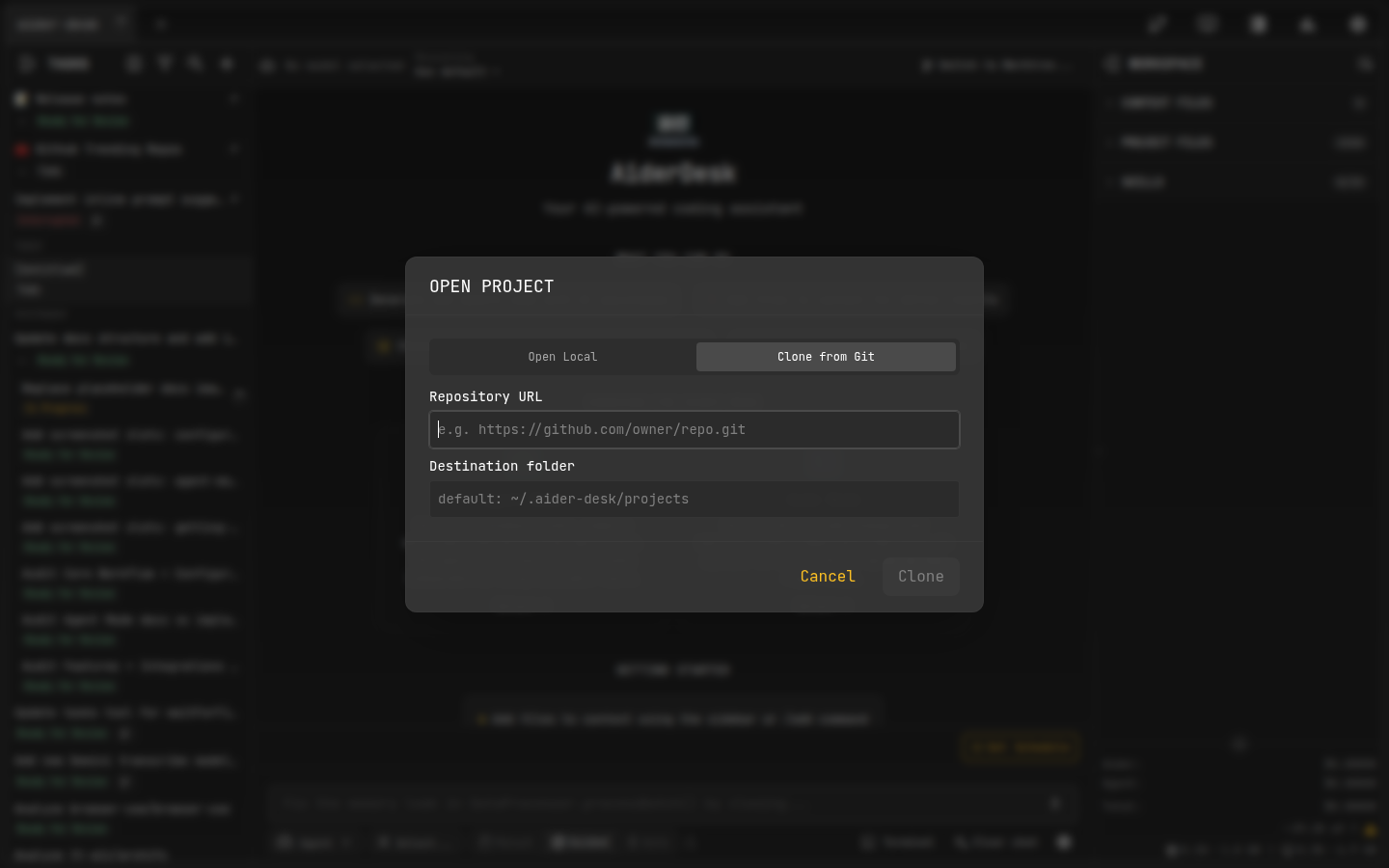
+button in the tab bar - In the dialog you can:
- Type or paste the absolute path to your project's root directory
- Click the folder icon to browse your file system
- Select a project from the Recent projects list
- Clone a Git repository directly by URL
Project Isolation
Each open project runs its own isolated environment:
- Separate contexts — chat history and context files are fully independent
- Independent processes — each project gets its own dedicated Python connector process, started lazily on first use
- Concurrent work — an AI task can run in one project while you work in another
Switching Between Projects
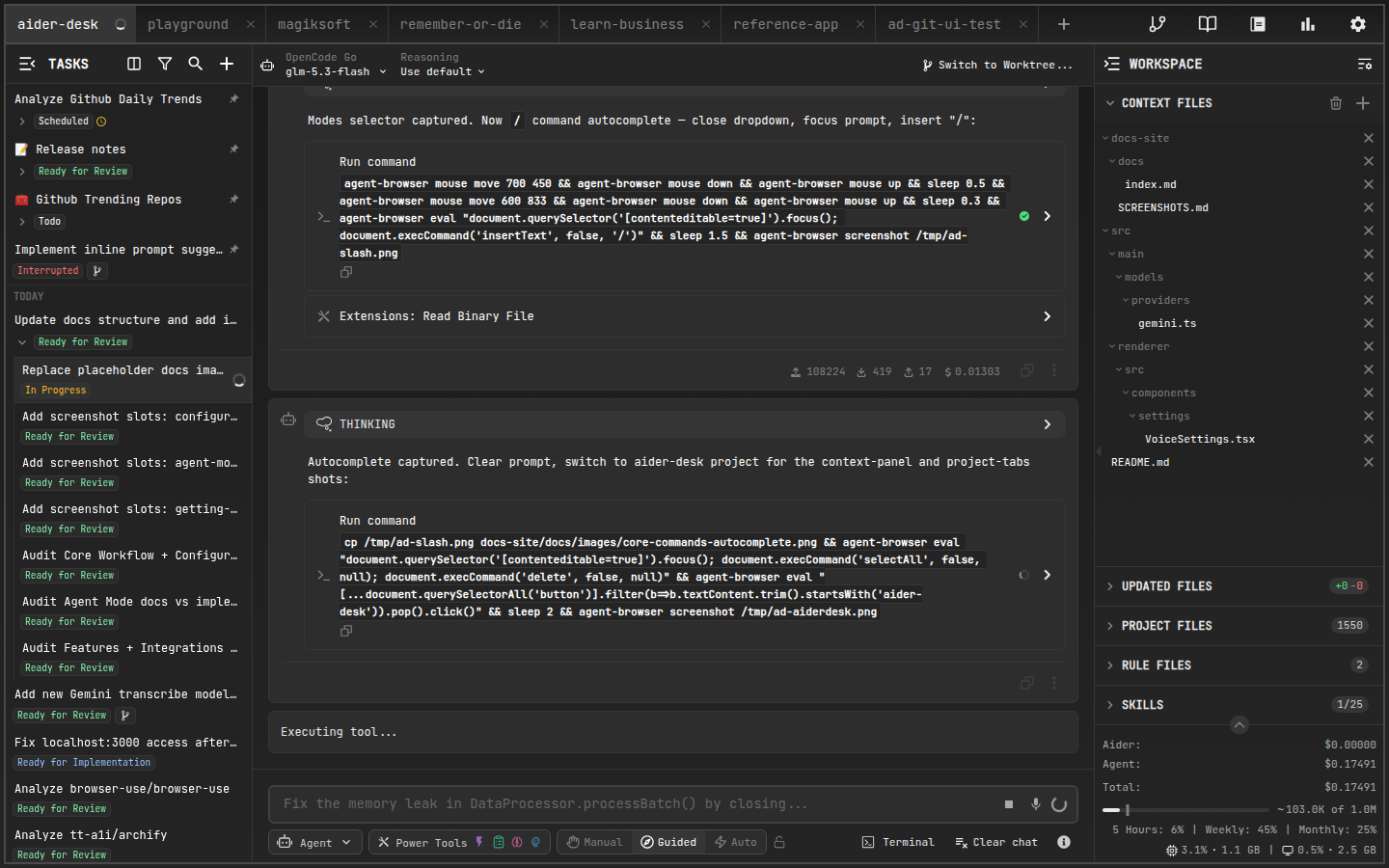
All open projects are displayed as tabs at the top of the window:
- Click a tab to switch to that project
- Use
Ctrl + Tabto cycle through open projects
Closing a Project
Click the x icon on a tab to close it. The associated process is terminated and the project joins your recent list for quick access later.
Reordering Tabs
Drag tabs into your preferred position.