MCP Servers
AiderDesk's Agent Mode can be extended with external tools through the Model Context Protocol (MCP). By connecting to MCP servers, you can grant the agent new capabilities, such as web browsing, accessing documentation, or interacting with custom internal services.
What is MCP?
The Model Context Protocol is an open standard that allows AI models to safely and effectively use external tools. An MCP server exposes a set of tools that an AI agent can call to perform actions or retrieve information.
Configuring MCP Servers
You can manage your MCP servers in the dedicated MCP Servers tab in Settings.
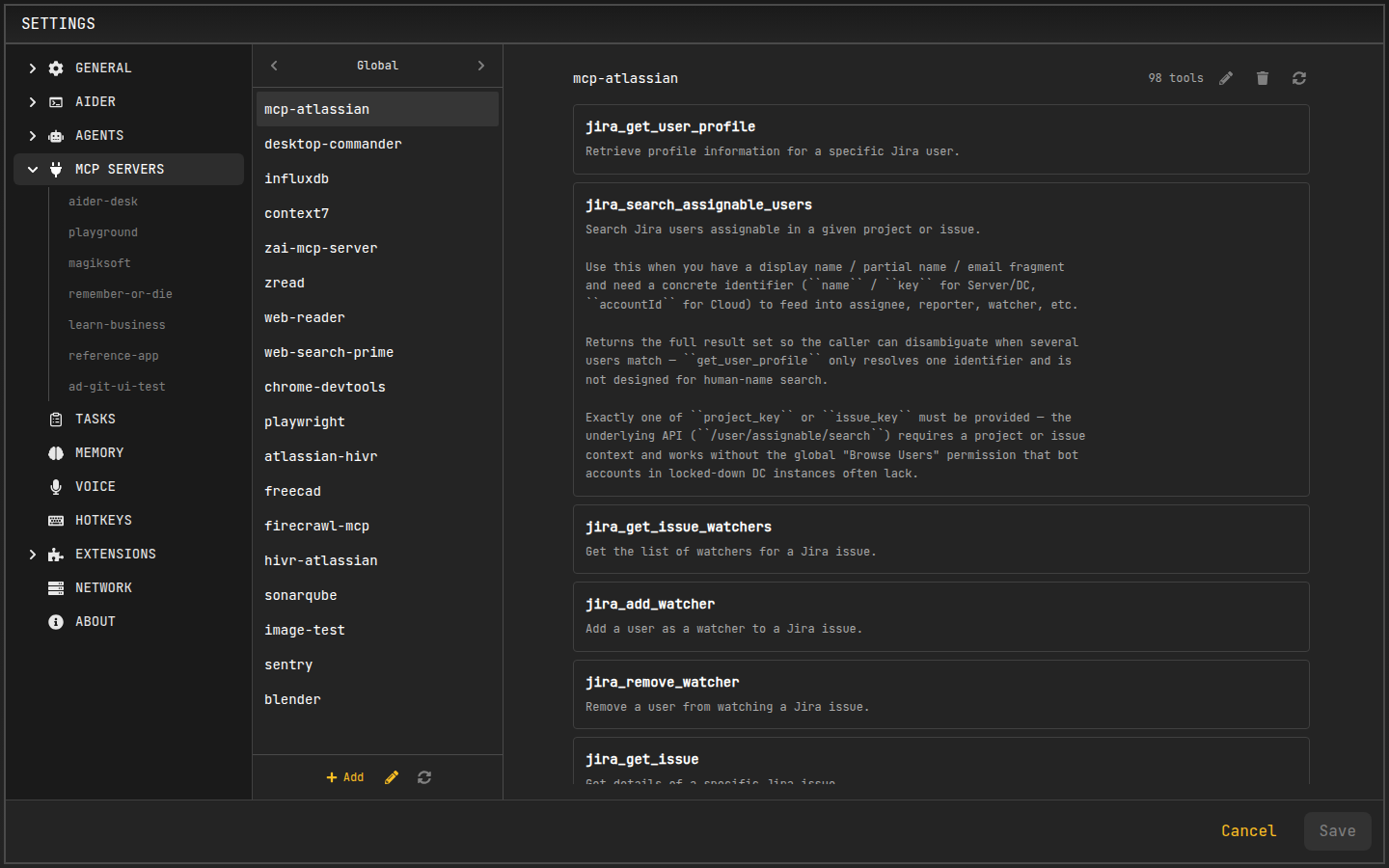
Adding a New Server
- Open Settings and navigate to the MCP Servers tab.
- Use the context switcher in the top-left corner to select where the server should live: Global (applies to all projects) or an open project (project-scoped server).
- Click the Add button.
- A form will appear where you can paste your server configuration as JSON.
- Use the context switcher or select a server in the list to view its tools. Each entry offers Reload, Edit, and Remove actions.
You can also edit the entire server configuration of the current context in raw JSON (pencil icon) or reload all servers at once (refresh icon).
Configuration Storage
MCP server configurations are stored in JSON files on disk rather than in the application settings:
- Global servers — stored in
mcp-servers.jsoninside the AiderDesk home directory (default:~/.aider-desk/mcp-servers.json, configurable viaAIDER_DESK_HOME_DIR). - Project servers — stored in
<projectDir>/.aider-desk/mcp-servers.json.
The file format is:
{
  "mcpServers": {
    "server-name": {
      "command": "npx",
      "args": ["-y", "@modelcontextprotocol/server-puppeteer"]
    }
  }
}
Global servers are available to every project, while project servers are scoped to their project and take precedence over global servers with the same name (the two are merged). The files are watched, so any changes made externally (for example, editing the file directly or committing one to the repository) are picked up automatically.
Configuration Format
The configuration is a JSON object that specifies how to run the MCP server. AiderDesk will start and manage the server process for you.
The configuration requires a command and an array of args. You can also provide environment variables in an env object.
For streamable http servers, you can also specify url and headers.
Example: Adding a streamable http server
{
  "mcpServers": {
    "http-server": {
      "url": "http://localhost:8000/mcp",
      "headers": {
        "x-api-key": "super-secret-key"
      }
    }
  }
}
Example: Adding a Puppeteer server for web browsing
{
  "mcpServers": {
    "puppeteer": {
      "command": "npx",
      "args": [
        "-y",
        "@modelcontextprotocol/server-puppeteer"
      ]
    }
  }
}
You can also paste a "bare" configuration without the mcpServers wrapper.
Using Directory Placeholders in Configuration
You can use placeholders in your server's args or env configuration:
${projectDir}- Replaced with the absolute path to the project's root directory${taskDir}- Replaced with the absolute path to the current task's working directory:- When using worktree mode: points to the worktree directory
- When using local mode: points to the project root directory (same as
${projectDir})
Example using projectDir:
{
  "mcpServers": {
    "my-custom-tool": {
      "command": "node",
      "args": [
        "/path/to/my/tool.js",
        "--project-root",
        "${projectDir}"
      ]
    }
  }
}
Example using taskDir (works with both worktree and local modes):
{
  "mcpServers": {
    "file-operations": {
      "command": "node",
      "args": [
        "/path/to/file-tool.js",
        "--working-dir",
        "${taskDir}"
      ]
    }
  }
}
Important: The MCP server's working directory (cwd) is automatically set to ${taskDir}, so tools that operate on files will work in the task's working directory by default. Use ${projectDir} when you need to access the project root regardless of whether worktree mode is active.
Enabling Servers and Tools in Agent Profiles
Configuring a server only defines its configuration — you must also enable it within a specific Agent Profile to make its tools available to the agent.
- In the Agent settings tab, select the profile you wish to edit.
- In the profile's tools section, you will see a list of all configured servers (global and project servers merged for the current project).
- Use the checkbox next to each server name to enable or disable it for the selected profile.
- You can further refine tool access by expanding a server's entry and setting the approval state for each individual tool (
Always,Never,Ask).
Authorization for Remote MCP Servers
AiderDesk supports OAuth authorization for remote MCP servers that require it (e.g., Sentry).
Authorize a Server
- Open Settings and navigate to the MCP Servers tab.
- Select the server that requires authentication.
- Click Connect — the authorization flow opens in your browser. Once you complete it, the connection is stored and the server's tools become available.
If your server requires an authorization flow that the built-in OAuth support does not cover, you can fall back to mcp-remote as a stdio-based proxy.
Step 1: Authorize in Your Terminal
Run mcp-remote in your terminal and complete the authorization flow:
npx mcp-remote https://mcp.sentry.dev/mcp
Step 2: Configure AiderDesk
Use mcp-remote as a stdio-based proxy in your MCP server configuration instead of connecting directly:
{
  "mcpServers": {
    "sentry": {
      "command": "npx",
      "args": [
        "mcp-remote",
        "https://mcp.sentry.dev/mcp"
      ]
    }
  }
}