Voice Control
Voice Control allows you to use speech-to-text functionality to dictate your prompts directly into the chat input field. This feature provides a hands-free way to interact with AiderDesk, making it easier to input long or complex prompts without typing.
Supported Providers
Voice control is currently supported with the following AI providers:
- OpenAI: Uses OpenAI's real-time speech-to-text API
- Google Gemini: Uses Gemini's live audio input capabilities
Note: Only one provider can have voice control enabled at a time. This ensures proper audio stream management and avoids conflicts.
Enabling Voice Control
Step 1: Configure a Provider Profile
Voice control uses the provider profile that has Voice Control enabled (OpenAI or Gemini).
- Open the Model Library (database icon in the top bar)
- Select your preferred provider profile (OpenAI or Gemini)
- Enter your API key in the provider settings
- Save the configuration
Step 2: Enable Voice Control (Model Library)
You can enable voice control directly on a provider profile:
- Open the Model Library
- Select the provider profile you configured in Step 1
- Find the Voice Control section
- Enable Voice Control and save
Note: Only one provider profile can have voice control enabled at a time.
Step 3: Configure Voice Options (Settings → Voice)
Use Settings → Voice for the detailed configuration:
- Open Settings
- Go to the Voice tab
- Select the Provider Profile you want to use for voice control
- Configure voice options as needed:
- Model (provider-specific)
- Microphone (choose a device or keep Default)
- Idle timeout (silence duration before auto-stop; default is 5 seconds)
- System instructions (what the speech-to-text session should expect)
- OpenAI: Language
- Gemini: Temperature
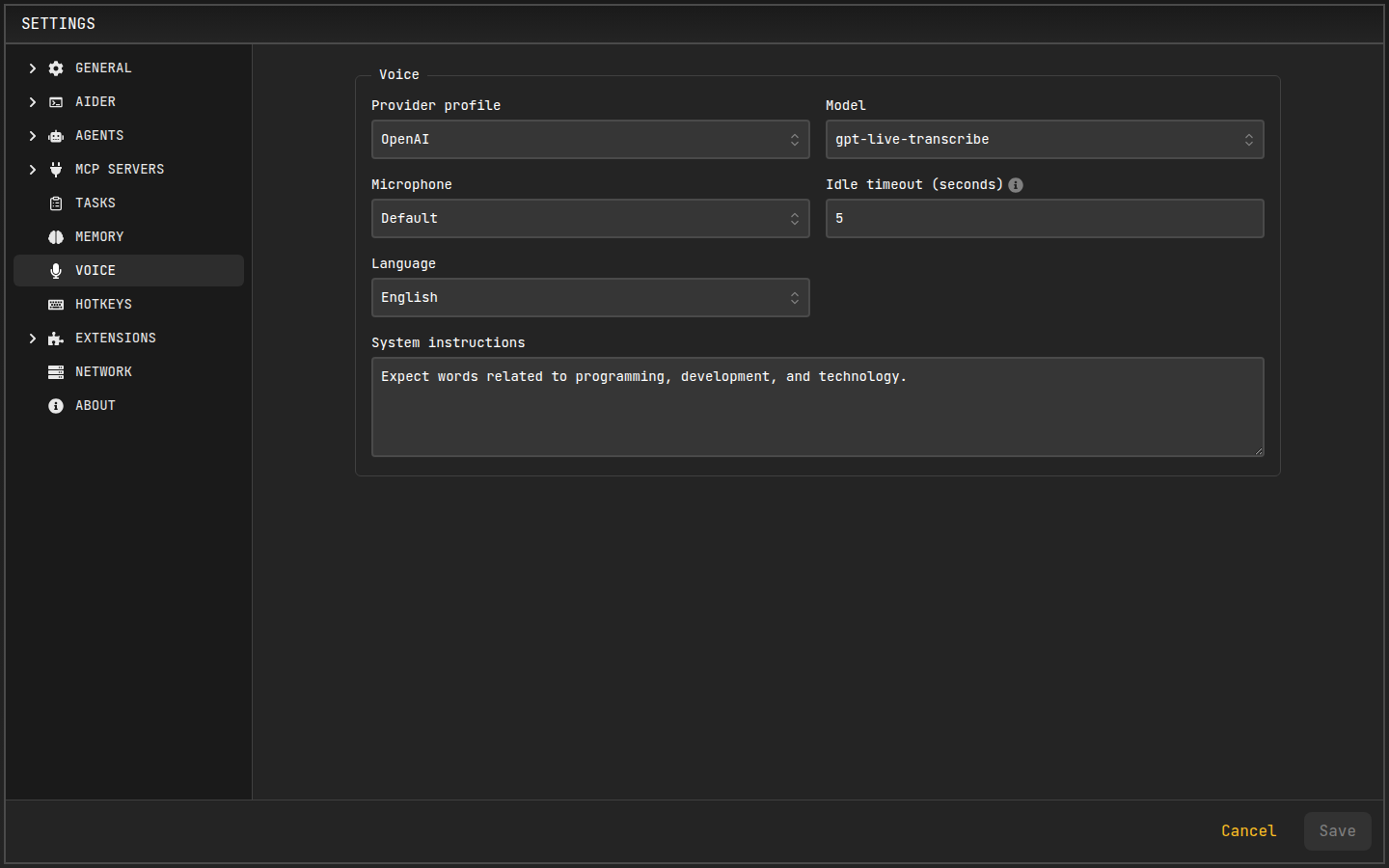
The microphone icon will appear in the chat input when a supported provider profile has voice enabled.
Using Voice Control
Starting Voice Recording
Once voice control is enabled, you'll see a microphone icon in the chat input area:
- Click the microphone icon to start recording
- Speak clearly into your microphone
- The audio analyzer will show visual feedback of your voice input
- Click the microphone icon again to stop recording
Real-time Transcription
As you speak, the system will transcribe your speech in real-time:
- Live Transcription: Text appears as you speak
- Automatic Silence Detection: Recording stops automatically after the configured idle timeout (default: 5 seconds)
- Visual Feedback: Audio level indicators show when your voice is being detected
After Recording
Once you stop recording:
- The transcribed text will appear in the chat input field
- You can edit the text before sending if needed
- Press Enter or click Send to submit your prompt
Technical Implementation
Audio Processing
The voice control system uses Web Audio API for:
- Audio Capture: Accesses microphone through
navigator.mediaDevices.getUserMedia() - Audio Processing: Real-time audio level monitoring and silence detection
- Format Conversion: Converts audio to PCM format for provider APIs
Provider Integration
OpenAI Integration
- Uses WebRTC for real-time audio streaming
- Supports OpenAI's real-time speech-to-text API
- Handles audio buffer management and transcription events
Gemini Integration
- Uses Google GenAI SDK for live audio input
- Uses a Gemini live voice model (current default:
gemini-3.1-flash-live-preview) - Implements an idle timeout (silence) auto-stop (default: 5 seconds)
Security and Privacy
- Local Processing: Audio is processed locally before being sent to providers
- Secure Transmission: All audio data is transmitted using encrypted HTTPS connections
- No Local Storage: Audio recordings are not stored locally after transcription
- Permission Required: Microphone access requires explicit user permission
Requirements and Limitations
System Requirements
- Microphone: A working microphone is required
- Browser Permissions: Microphone access must be granted
- Network Connection: Stable internet connection for provider API communication
- API Key: Valid API key for OpenAI or Gemini
Current Limitations
- One Provider at a Time: Only one provider profile can have voice control enabled
- No Voice Commands: Voice control only transcribes speech, it doesn't execute voice commands
- No Audio Playback: The system doesn't provide text-to-speech capabilities
Platform Support
- Desktop: Full support on Windows, macOS, and Linux
- Microphone Access: Requires microphone permissions on all platforms
- Electron Security: Microphone access is properly sandboxed within the application
Troubleshooting
Common Issues
Microphone Not Working
- Check if your microphone is connected and working
- Verify microphone permissions in your system settings
- In Settings → Voice, try selecting a specific microphone device (instead of Default)
- Ensure no other application is using the microphone
- Restart the application
Voice Control Not Available
- Verify you have a provider profile configured with a valid API key
- Open Settings → Voice and select a supported provider profile (OpenAI/Gemini)
- Ensure only one provider profile has voice control enabled
- Restart the application if changes don't take effect
Poor Transcription Quality
- Speak clearly and at a moderate pace
- Ensure minimal background noise
- Check your microphone quality and positioning
- Try moving closer to the microphone
Connection Issues
- Verify your internet connection is stable
- Check if your API key is valid and has sufficient credits
- Ensure the provider's API is operational
- Try switching to a different provider if available
Configuration Options
Audio Settings
The voice control system includes several configurable parameters:
- Microphone: Select a specific input device (or keep Default)
- Idle timeout: Automatically stops recording after a period of silence (default: 5 seconds)
Provider Settings
Each provider has specific configuration options (available in Settings → Voice):
OpenAI
- Model:
gpt-live-transcribe(default),gpt-4o-transcribe,gpt-4o-mini-transcribe, orgpt-realtime-whisper - Language: Selectable (default:
en) - System instructions: Customizable
- Idle timeout: Customizable
Gemini
- Model:
gemini-3.1-flash-live-preview(default) orgemini-2.5-flash-native-audio-preview-12-2025 - Temperature: Slider from 0 to 1 (default: 0.7)
- System instructions: Customizable
- Idle timeout: Customizable
Future Enhancements
Planned improvements for voice control include:
- Voice Commands: Ability to execute commands through voice
- Multiple Provider Support: Enable voice control on multiple providers simultaneously
- Text-to-Speech: Add audio feedback for system responses